PRAGMATA “Stereo 3D” Mod Setup Guide
Just got that new Capcom game Pragmata working with my 2D-to-3D conversion shader Rendepth (a shader effect for ReShade). Did try it on the demo that released a couple months back, but hadn’t got around to checking the launch version until last night. Good news is it works almost perfectly, and I’m honestly surprised how it turned out. Unfortunately the setup is manual and a bit complex (more so than most games) so figured it was worth writing a guide, since I’m sure people would be confused.
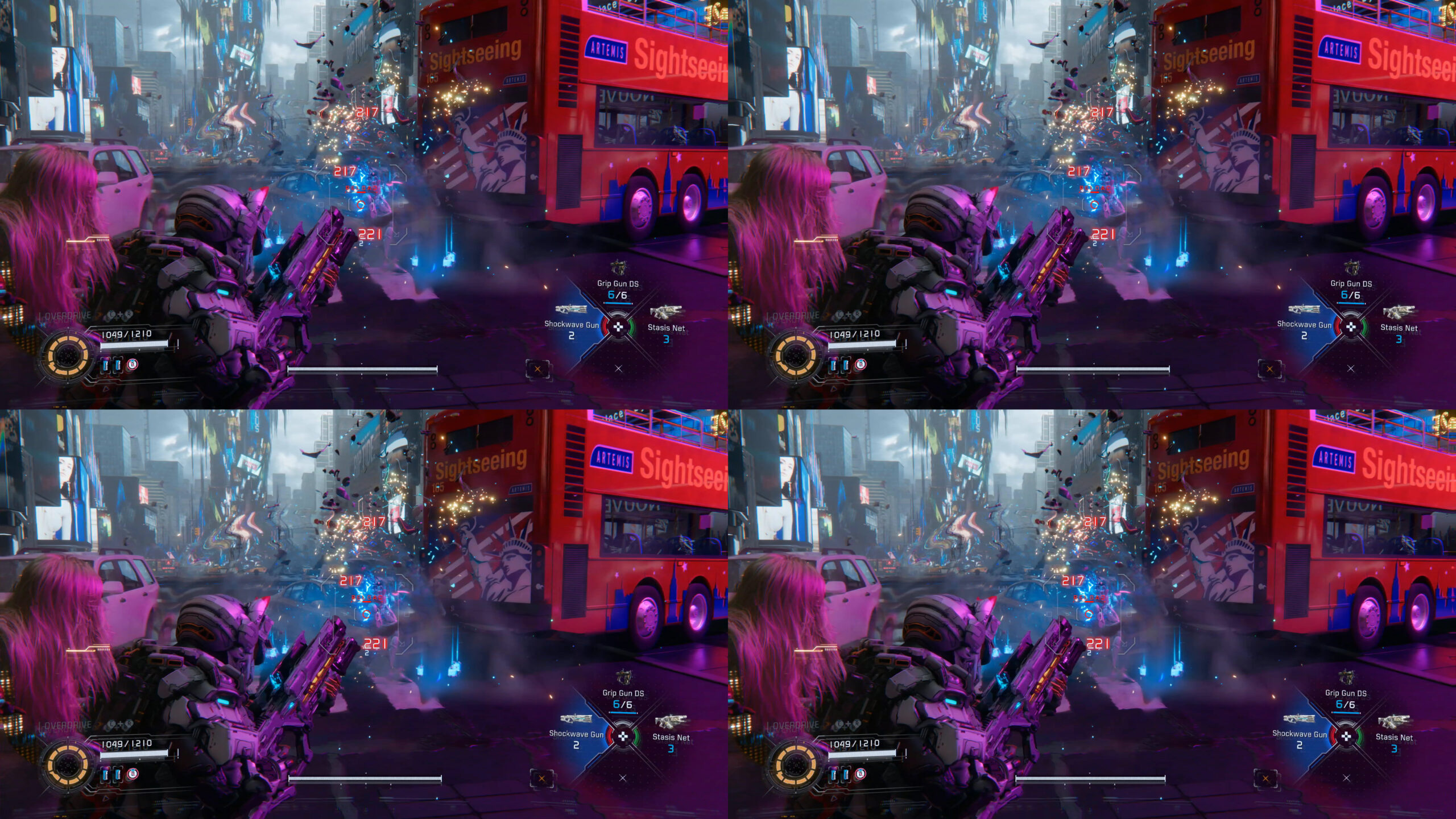
First steps would be to download ReShade and install the Rendepth effect (and, optionally, 3DGameBridge if using the Samsung Odyssey 3D or similar “glasses free” 3D kits). There’s detailed steps on the GitHub, but I can list them here to be complete. You’ll also need to install REFramework in order that mods function on this title.

- Download ReShade (with add-ons) from here: https://reshade.me
- Run the installer, search for “pragmata” and install “Rendepth”
- Be sure to click twice to select the “Rendepth” shader effect files
- If using Odyssey3D/SpatialLabs displays, install “3DGameBridge” next
- In order to enable mod support on Pragmata, use REFramework
- Check the nightly releases for “PRAGMATA.zip” and download
- Extract only the “dinput8.dll” file into the game root folder
- Press “Home” on the keyboard after launching the game for the menu
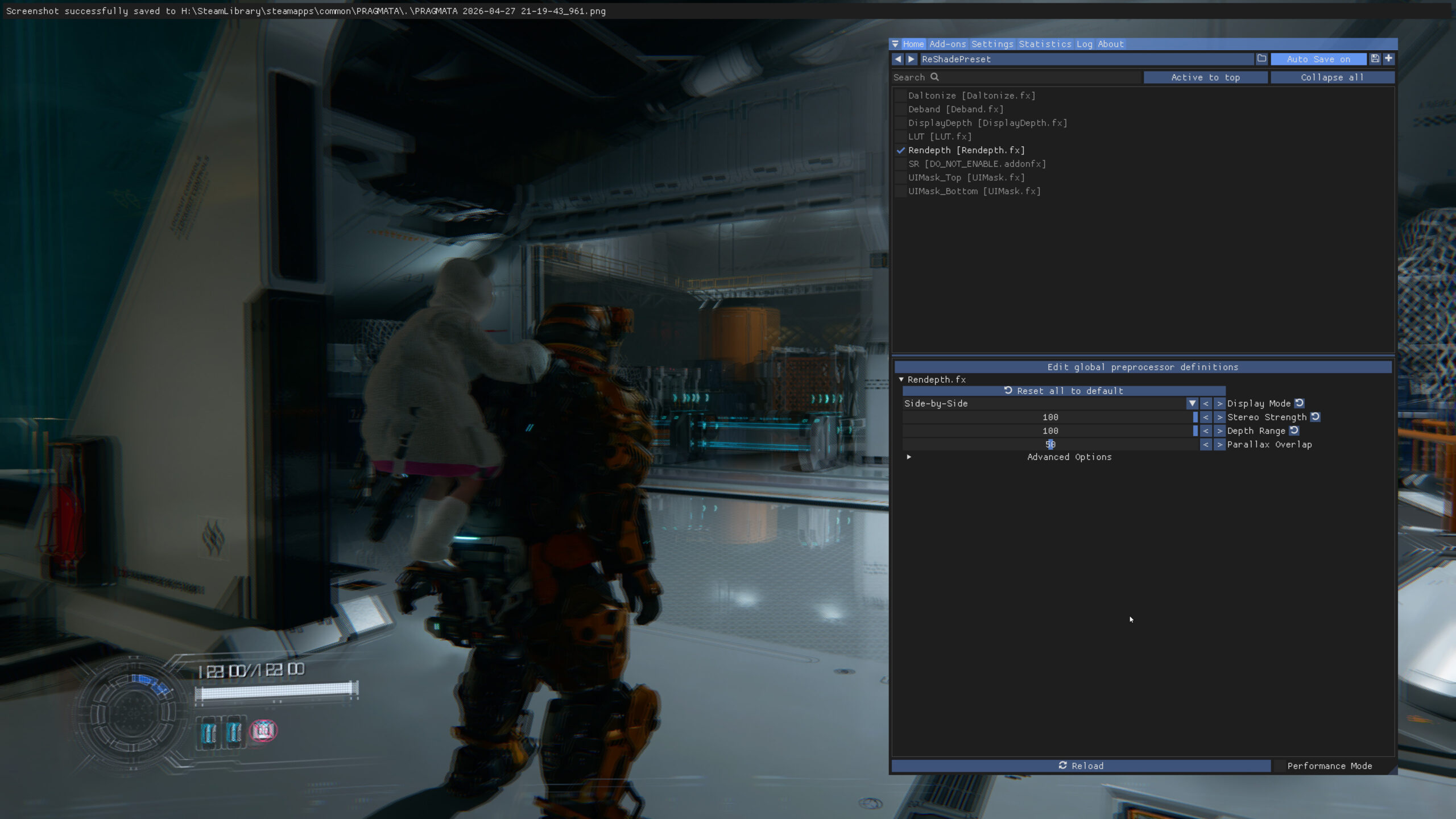
From here you can enable Rendepth by checking the box on the upper left. Disable “Performance Mode” to see the configuration options. For the quality from the video, select “Side-by-Side” for the “Display Mode” (for Odyssey 3D, or choose the option for your display), set “Stereo Strength” and “Depth Range” to the max of 100. Set “Parallax Overlap” to 50. You’ll also want to select the “Advanced Options” and enable the “View Depth Buffer” as it will make the next step easier. This shows the color for the game on the left of the split-screen, and the DirectX depth-buffer on the right half. It’s essentially a grayscale “heightmap”. In terms of the 3D conversion algorithm, a white color means “close to the camera” and progressively fades to black as it reaches the background. If this texture is either fully black or fully white, it means the buffer is not detected, and you’ll need to select the correct one next. Keep in mind that when using the srReshade add-on (on Samsung/Acer 3D kits) the 3D mode for the monitor cannot be toggled in-game. In order to do the next step, you’d want to disable srReshade, and then reboot the game. After becoming comfortable with adjusting these menus, it’s fine to leave srReshade and the 3D enabled (and then *not* using the “show depth buffer” debug tool), since you should be able to see if the 3D effect is working just by eye. However, the first time you go through this guide (which mostly applies to any game, not just Pragmata) it’s smart to perform the steps in 2D.
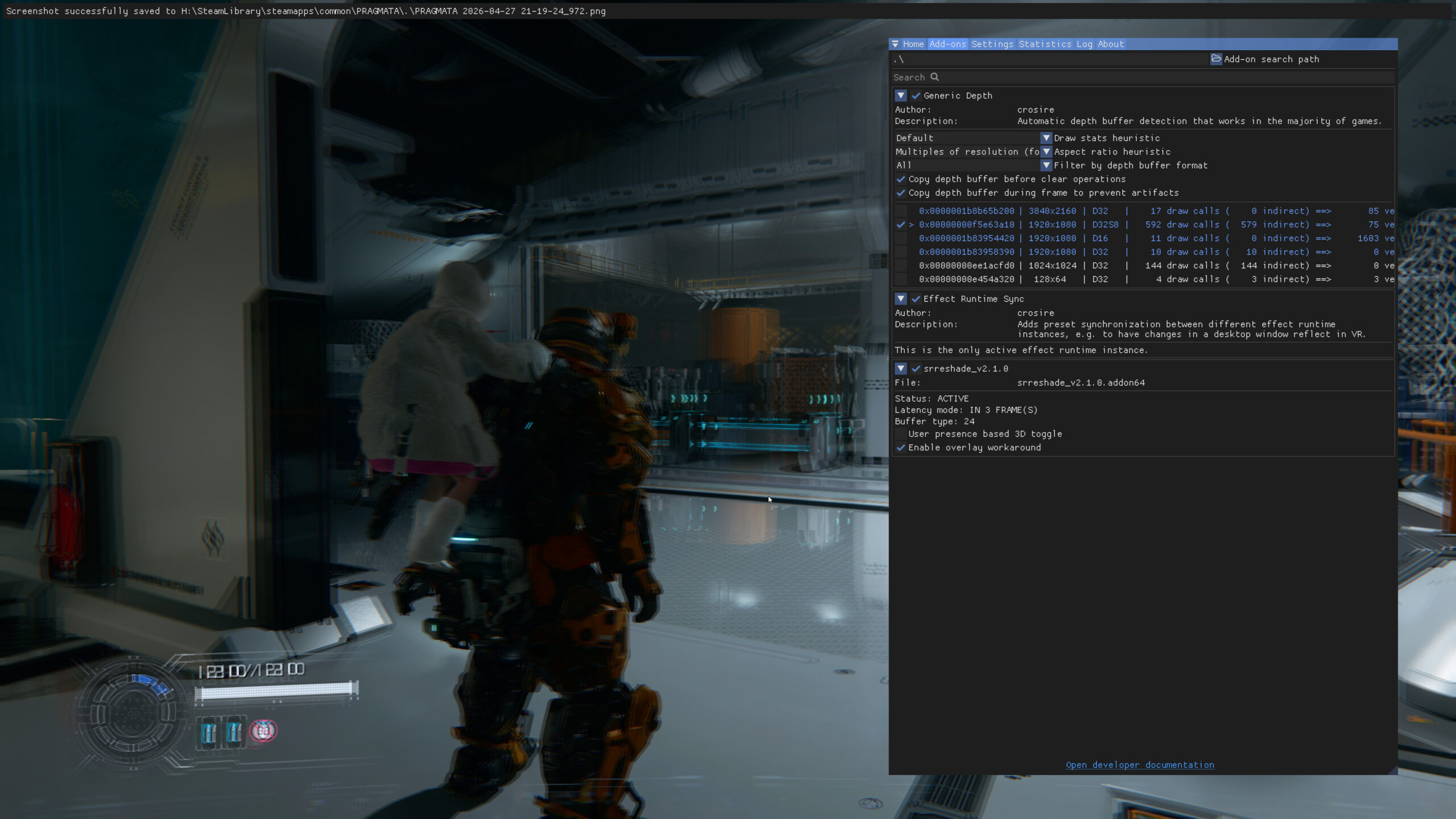
Then select the “Add-Ons” tab on the top of the ReShade menu. For the “Generic Depth” settings, select the “Aspect Ratio Heuristic” of “Multiples of Resolution (DLSS Compatible)” and then mask out the primary depth buffer from the list below. In this case it was the second item on the list (the one with around 600 draw calls) so look for the one with the most draw calls (with the first drop down “Draw Stats Heuristic” set to “Higher Draw Calls” then manually check that item from the table). Also ensure you check both “Copy depth buffer…” checkbox flags. After this everything should be good to go and (thankfully) the settings should mostly save and not have to be configured every time. Now check “Performance Mode”.
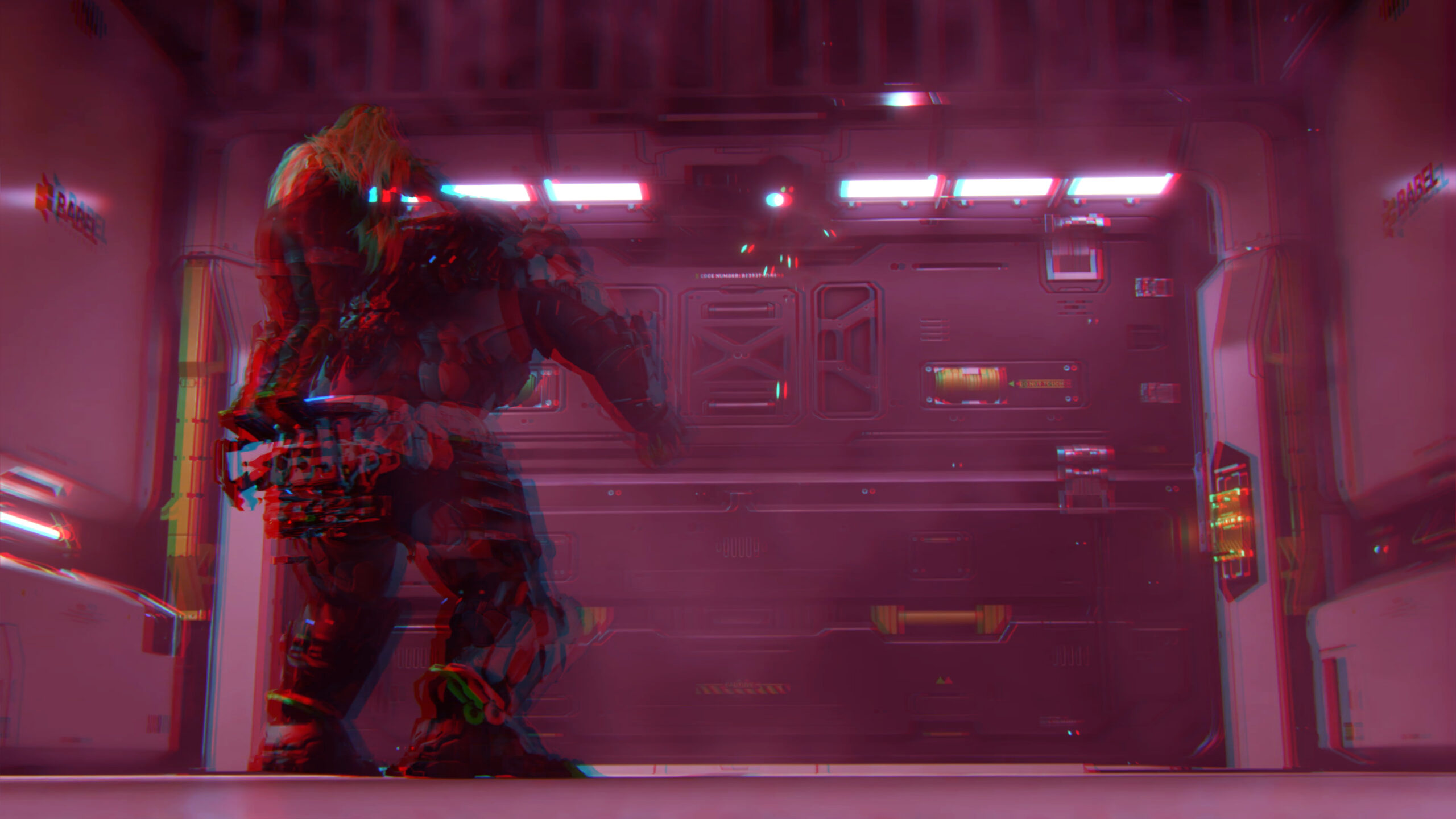
As a final note, the in-game graphics settings may need to be configured so that ReShade and the shader can properly access the depth and perform the reprojection. For the in-game display settings, you’ll always want the native resolution for the monitor (4K in the case of Odyssey 3D), VSync should be set on, and you’ll need to play with the DLSS/FSR/XeSS options on a per-game basis. Generally FSR scaling is more reliable, and frame-gen (from any vendor) often causes issues. In Pragmata specifically, using DLSS frame-gen results in VSync being disabled, causing screen-tearing, which looks poor in stereo. So frame-gen should be disabled, and VSync set on. I also selected DLSS Performance mode, and disabled “dynamic resolution scaling”. Otherwise, the game was set with everything on highest settings with an Nvidia RTX 5080, including path tracing, and looks absolutely amazing. Plus, these same steps can work on many other games. Assassin’s Creed: Shadows, ROMEO IS A DEAD MAN, Silent Hill f, Stellar Blade, and Still Wakes the Deep are some recent titles with full compatibility.